Type your mobile number, then your password. If you would rather not type a password, a one-time code by SMS works just as well, and using one never changes your password.
With your password
- Press Login/Register in the menu, or tap You at the bottom of a phone screen.
- Type your 10-digit mobile number and press Continue.
- Welcome back appears with your number at the top. Type your password and press Log in. Show lets you check what you typed.
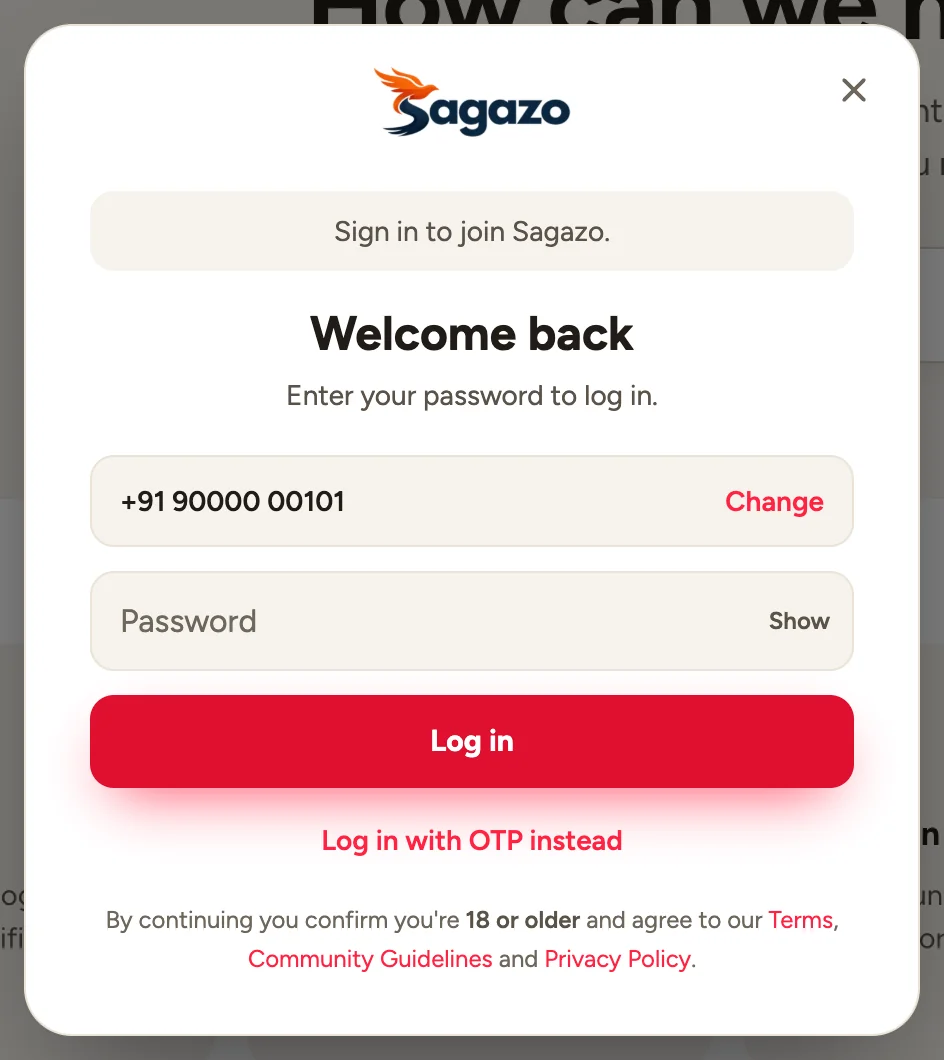
Change, next to your number, takes you back to type a different one.
With a code instead
On the password step, press Log in with OTP instead. We send a 6-digit code by SMS. Type it in and you are logged in.
If your account has no password yet, for example because you never finished signing up, you always get a code and there is no password step.
If it doesn't work
- "Invalid phone number or password." means one of the two is wrong. We don't say which.
- After too many tries, Sagazo asks you to wait and says for how long.
- A code works for 10 minutes and stops working after 5 wrong tries.
- Forgot your password? Log in with a code. See I forgot my password.
When you are logged in, you come back to the page you were on. The app has the same steps and the same messages.
If your account is suspended or closed, logging in shows you why and how to ask us to look again. See Account suspended or closed.