A poll is a post that people vote on. Your words are the question, and each person picks one option.
Make a poll
- Start a post. See Creating a post.
- On the website, press Poll at the bottom of the box. In the app, turn on the Poll switch under your words.
- Write your question as the post's words.
- Fill in the options. Press + Add option for another one. A poll has 2 to 6 options, each up to 80 characters, and options you leave empty are dropped.
- Next to Closes, choose no deadline, 24 hours, 3 days or 1 week. The time starts when you publish.
- Press Publish.
A poll can have photos and videos like any post. To turn the poll off before you publish, press Remove in the poll box, or turn off the switch in the app. If you have a shop, a post can't be a poll and a product at the same time.
Vote in a poll
Open the post and tap the option you want. You need to be logged in, and anyone who can see the post can vote, you included. In a private circle, that means its members.
After you vote, you see the results: each option's share of the votes, with your choice ticked. Before you vote, you see only how many votes there are. The poll doesn't show who voted for which option.
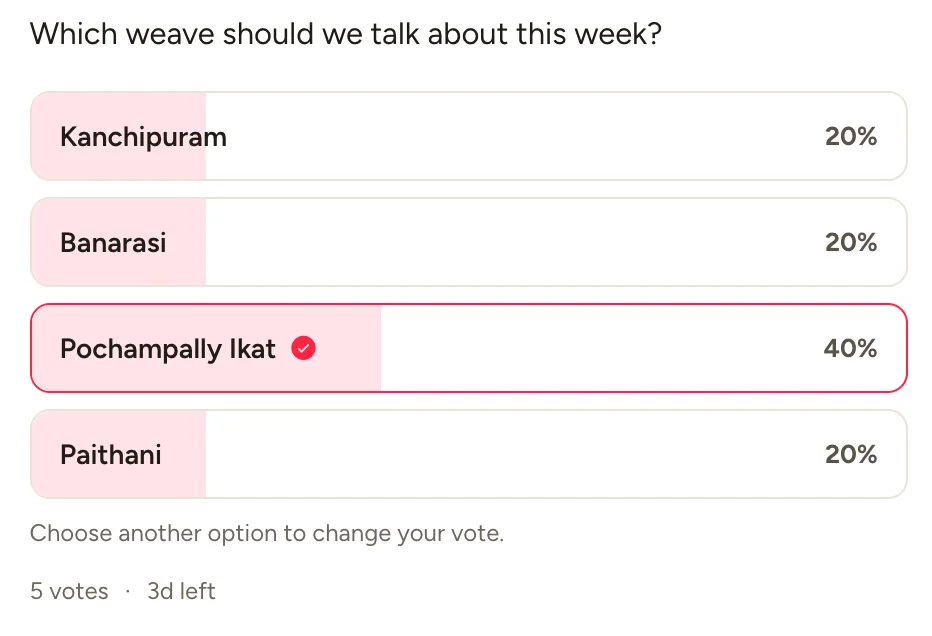
You can change your vote until the poll closes. Tap another option, and your vote moves to it.
Under the poll you see how many votes it has and how long is left. A poll with no deadline says Open, and one that has closed says Final results.
After you publish
A poll can't be changed by editing. You can still edit the post's words, photos and who can see it, but not the options or the closing time, and you can't add a poll to a post that is already up. There is no way to close a poll early.
To change a poll, delete the post and make a new one. Its votes are deleted with it. See Editing or deleting a post.