To invite people to your circle on Sagazo, tap Invite under the circle's description and share the link it gives you, on WhatsApp or anywhere else. Every member has the button, and the link carries your username, so the Members tab can show who joined from it. This post covers the link, what visitors see, circles inside posts, where else people find circles, and what moves a circle up the Circles page. How Sagazo Circles work covers the basics.
The Invite button and your link
Invite comes after Post in this circle and Chat, under the circle's description. It opens a box with your link, a Copy button and buttons that share it on WhatsApp, X or Facebook. The link looks like sagazo.com/circles/handloom-saree-lovers?ref=lakshmiweaves, which is the circle's own address with your username at the end. Sharing it sends nobody a notification, so people open it when they choose.

Right after you create a circle, this box opens by itself.
The WhatsApp button fills in a short message, "I'm in the Handloom Saree Lovers circle on Sagazo. Join me here:", followed by your link. Add a line of your own on why you thought of each person, and send it to people one at a time rather than dropping it into other groups. Our guide to starting an online community in India goes through choosing your first ten members.
If your group already lives on WhatsApp, share the link in that group and keep the chatter where it is. Our comparison of WhatsApp group alternatives explains how the two work side by side.
What people see when they open your link
Your link opens the circle's page with a line at the top, such as "Lakshmi R. invited you to join Handloom Saree Lovers." For a public circle it adds "Join below and you're in", and the visitor can read the posts on the Feed and Pinned tabs before tapping Join circle. A private circle shows its name, description, member count and a Request to join button, but no posts until an admin approves the request, as how to run a circle explains.
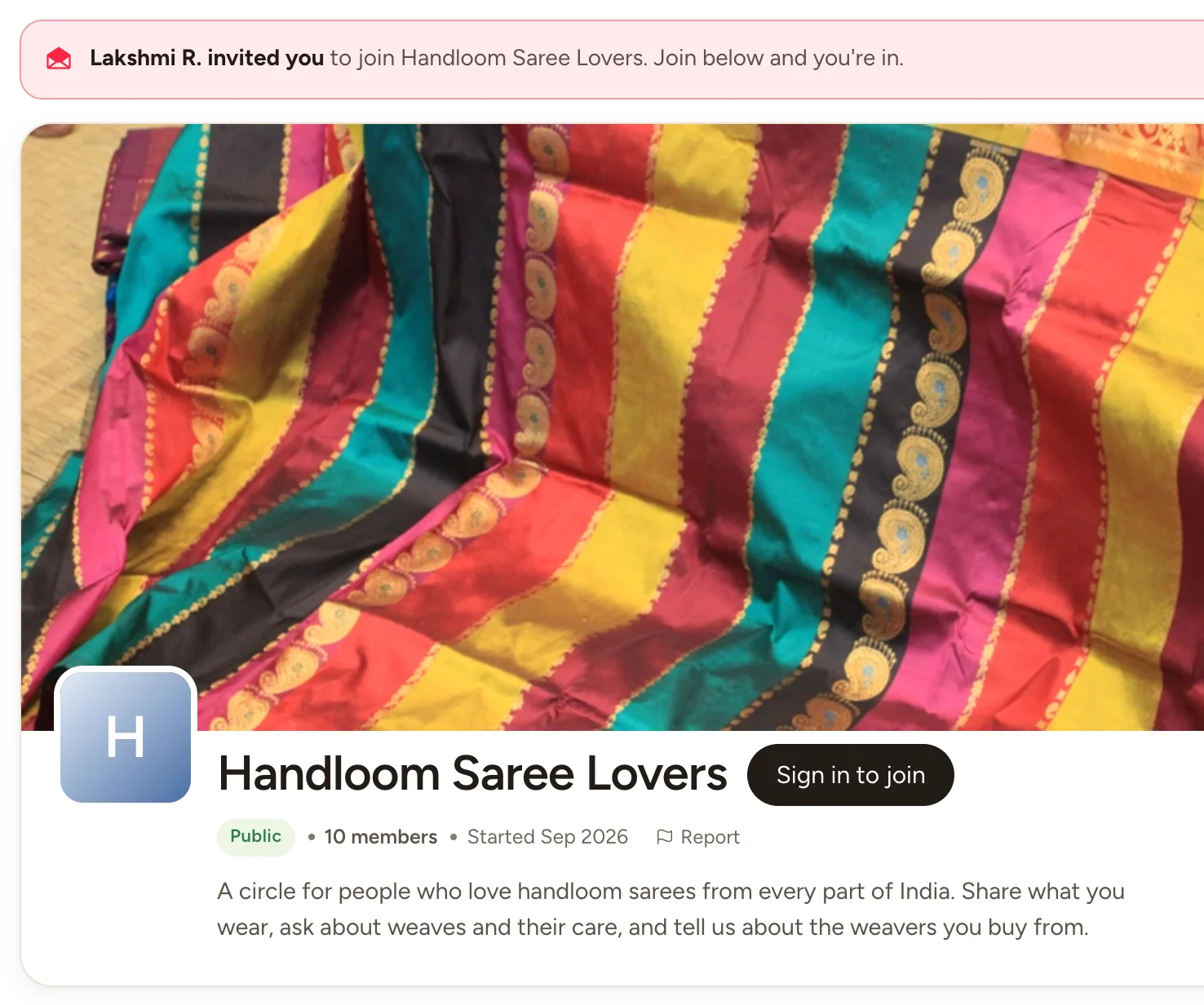 Photo in the screenshot: kvkamal120, CC BY 2.0, Flickr.
The greeting does not appear if the username in the link belongs to nobody, if you open your own link, or if the visitor is already a member.
Someone who is not signed in sees Sign in to join. Signing in brings them back to your link, and a new account finishes setting up on the same page, so they can join from there and the invite counts as yours.
Where apps show link previews, yours carries the circle's name, member count and description, and its cover photo if it has one. A clear description and a good cover photo make that preview worth opening.
Who invited whom
The Members tab, which every member can open, shows "Invited by Lakshmi R." under each person who joined from Lakshmi's link. It is recorded only when someone joins on the circle's own page, opened from that link. Someone who joins from anywhere else, such as the Circles page, a circle card in a post or the sign-up suggestions, gets no "Invited by" line, even if you told them about the circle. In a private circle the line appears once an admin approves the request.
Put your circle inside a post
A post can carry a circle. Paste the circle's link into your caption, or type @ and the first letters of the circle's name and pick it from the list, where circles are listed below people. The post then shows the circle's card, with its name, cover, member count, posts this month and a line of its description. The card's button reads Join, or Request to join for a private circle. In the post itself, the link reads as the circle's name. If the post has no photos and no other link, the circle becomes its cover in the feed.
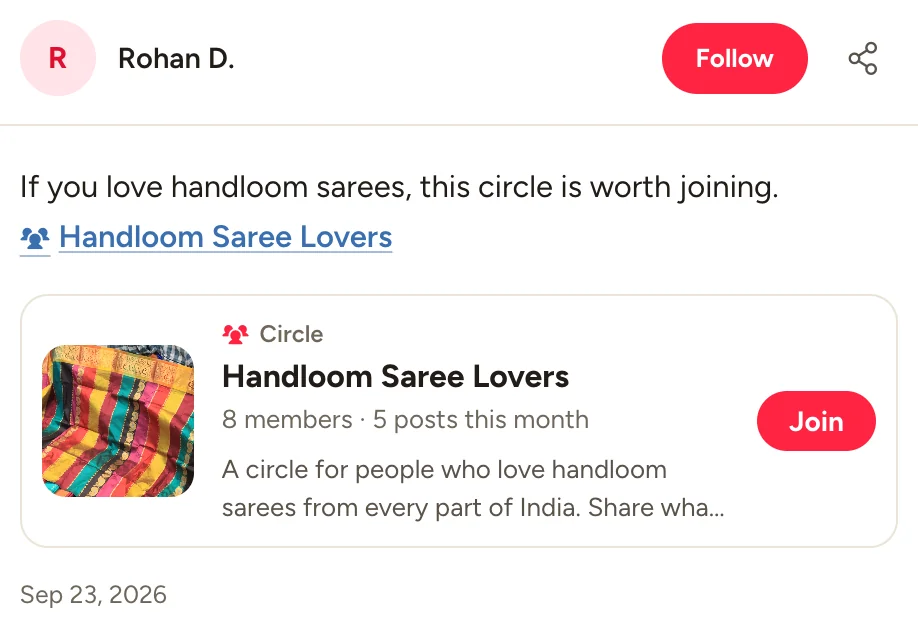 Photo in the screenshot: kvkamal120, CC BY 2.0, Flickr.
A taken-down circle gets no card. A post made inside a circle gets no card for that same circle either, because its "Posted in" line already has a Join button.
Where else people come across circles
The Circles page lists the public circles you have not joined under Discover Circles, and the search bar finds public circles by name or description. Private circles appear in neither, so a private circle grows through its link.
People also meet circles without looking for them. A new account is shown up to nine of the most active public circles, under Join a few circles, as soon as it has set up its profile. Someone who is signed out, or in no circle yet, sees a Circles box in the fifth spot of the Trending feed, with three active circles and a Join button on each. And a person in no circle who opens the Post to list in the composer is offered five circles to join.
A post in a public circle can also appear in Trending, and its tile names the circle. Open it, and a line above the text reads "Posted in Handloom Saree Lovers" with the member count and a Join button. Members also see the circle's posts in their Following tab.
What moves a circle up the list
The Discover Circles list, the Circles box in the feed and the suggestions at sign-up and in the composer all use the same order. Circles with the most posts in the last 30 days come first. When two are level, the one with more members goes higher, and after that the newer one. Only posts that are still up are counted.
So a small circle where people post every week can sit above a big one that has gone quiet. Comments and reactions do not count, so it helps to ask members to share their own photos and questions as posts.
The daily reminder
Every day at 6 PM India time, each member whose circles had new posts from other people in the last 24 hours gets one notification from Sagazo, unless they have switched Circle Activity off. Circles a member has muted are left out of their reminder. It reads like "4 new posts in Handloom Saree Lovers and 2 more circles" and opens the busiest one. Your posts count toward everyone else's reminder but not your own, so a post from you most days gives the rest of the circle a reason to come back.
Start your circle
If you have not started one yet, open the Circles page and tap Create Circle. The invite box opens as soon as the circle is made. A shop grows a circle the same way. A seller can start one for customers from the Set up your shop checklist in My Shop, and the shop's page then shows a card inviting buyers to join. Share its link with the customers you already talk to on WhatsApp, and post your new stock there.