A circle on Sagazo is run by the person who started it and by its admins, who are members given that role. Admins approve requests to join, remove members and posts, pin up to 10 posts, write the circle's rules, and change the circle's name, description, cover photo and whether it is public or private. The creator holds two things no admin does: nobody can remove them or change their role, and only they can delete the circle. Sagazo can also delete a circle, and tells its creator why. This post covers each job and what your members see. How Circles work on Sagazo covers joining and starting one.
Who runs a circle
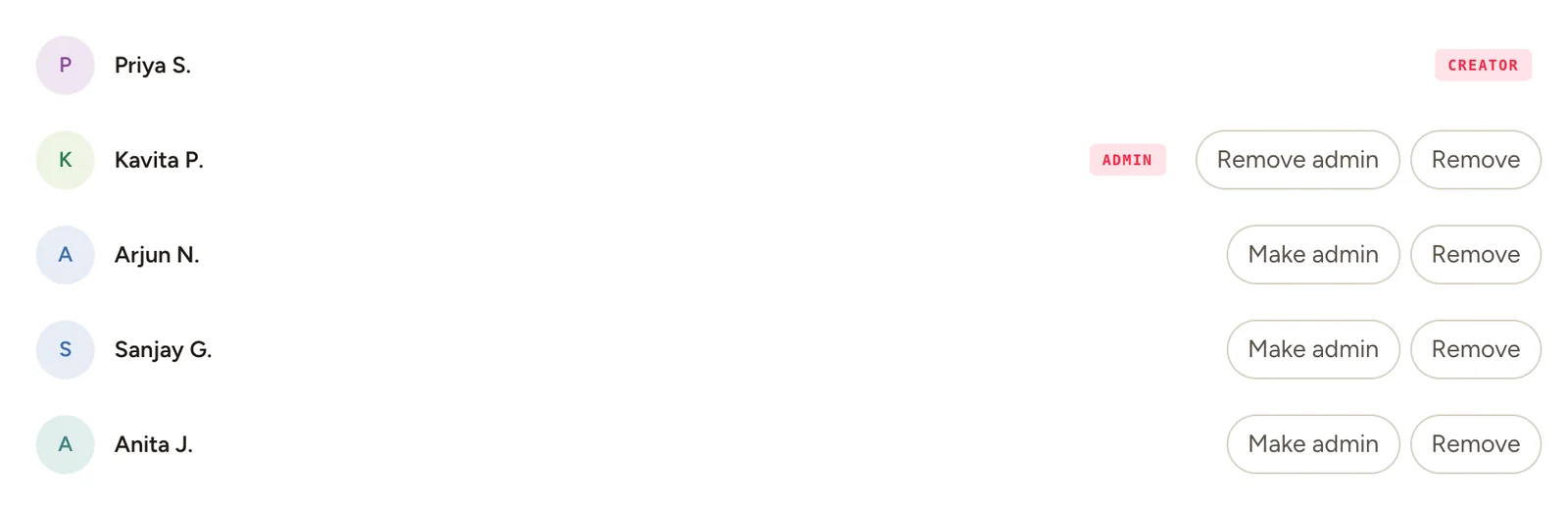
The Members tab marks the circle's creator as Creator and each admin as Admin. Admins can also make or remove other admins, and there is no limit on how many a circle has. Every member can post and invite people, admin or not.
A group run by one person can stall when that person is busy. Our guide on how to start an online community in India suggests making two of your most active members admins within the first few weeks.
How to make someone an admin
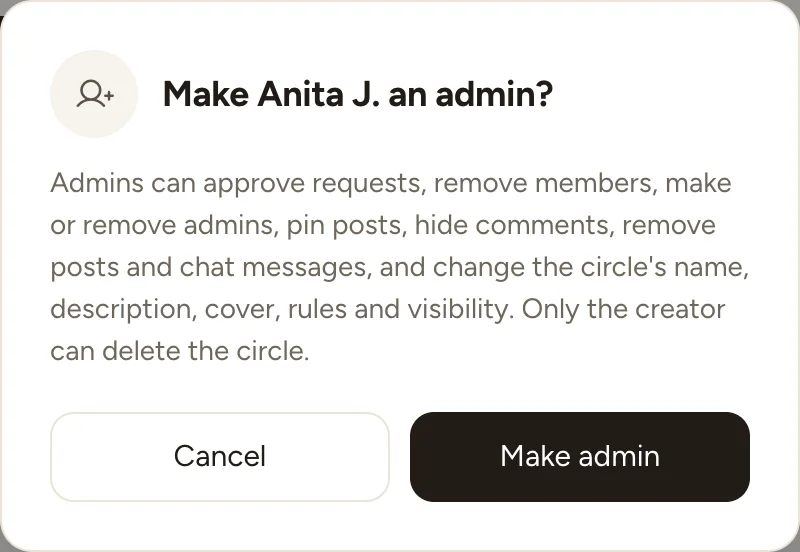
On the Members tab, tap Make admin beside the person's name. A box explains what admins can do and asks you to confirm. The new admin gets a notification with your first name, such as "Ravi made you an admin of Palm Grove Residents."
Remove admin works the same way. The person stays in the circle as a member and is not notified. Any admin can take away another admin's role, but nobody can change the creator's role, and you cannot change your own.
Removing a member or a post
Tap Remove beside the person and confirm. They leave the member list and the circle's group chat, their earlier posts stay, and they get a notification that they were removed. They can't join again, or ask to join, until an admin lets them back in: their name waits on the Members tab under Removed members, with a Let back in button.
If a post breaks your rules, open it, tap the three-dot menu, choose Remove from circle and confirm. The post comes off the circle's feed and Sagazo's main feed, and only our moderators can put it back. Report, in the same menu, tells our moderators about a post that breaks Sagazo's Community Guidelines. If the same person keeps doing it, remove them too.
Admins can also hide a comment on a post in the circle, with Hide comment in the comment's menu, and remove a message from the circle's chat, with Remove message in the message's menu. The person is told that the circle's admins did it.
Approving requests to join a private circle
A visitor to a private circle sees its name, description and member count, but not its posts or its member list. They tap Request to join, and the button changes to a Request sent label, with Cancel request beside it.
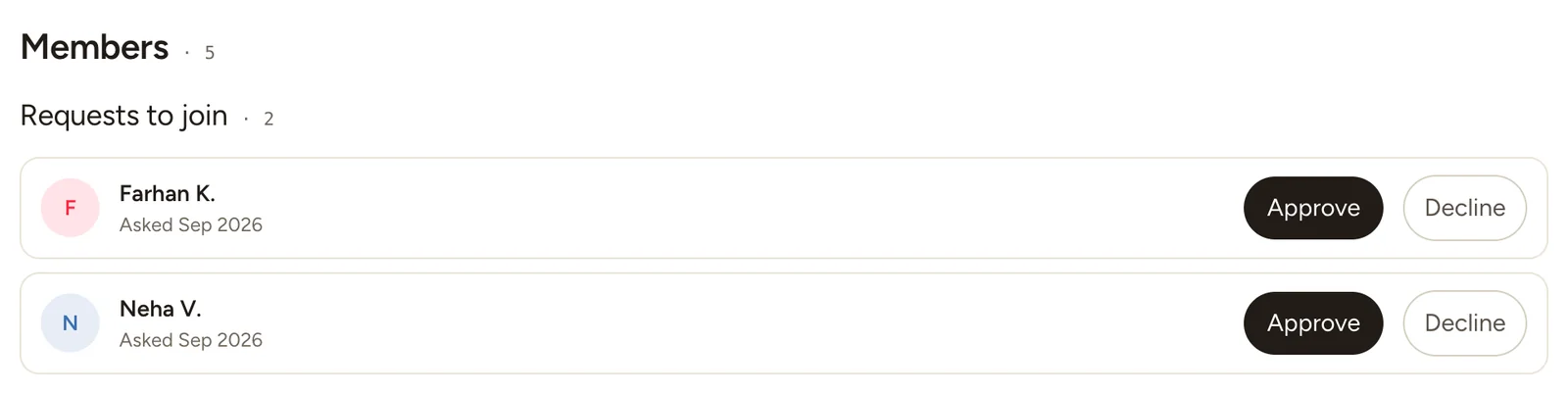
Every admin gets a notification, such as "Sita asked to join Palm Grove Residents", which opens the circle. The request waits on the Members tab under Requests to join, with Approve and Decline buttons. Approve, and the person is a member at once, with a notification that reads "You're in. Palm Grove Residents approved your request." Decline, and the request is deleted without any message to them, so if you turn down someone you know, tell them why yourself.
When someone joins, welcome them in a post and mention them with @ and their username, which sends them a notification.
Public or private, and switching later
In a public circle anyone can read the posts and join straight away. In a private circle only members see the posts, and each new person needs an admin's approval. Any admin can switch between the two from the Settings tab: under Visibility, tap Flip to private or Flip to public, and confirm.
The switch covers every post already in the circle, and existing members stay. Opening a private circle to the public makes its old posts readable by anyone, and posts in public circles can appear in Sagazo's main feed.
Changing the name, description and cover photo
In the Settings tab, edit the name or description and tap Save changes. A description can run to 400 characters, about 50 words, and the circle's page shows its first two lines with a Read more button, so put the most useful sentence first. Renaming keeps the circle's link, so shared invite links still work.
For the cover photo across the top of the page, tap Add a photo or Change photo, and it saves once uploaded. A wide photo of 1640 by 624 pixels or larger fits best.
Writing the circle's rules
In the Settings tab, under Rules, admins can write up to 10 short rules for the circle, each up to 200 characters, and tap Save rules. Anyone who opens the circle's page sees them, under the description. Someone who taps Join circle or Request to join on the circle's page reads them before they join, and the composer shows them to anyone posting in the circle. The rules add to Sagazo's Community Guidelines and can't allow anything the guidelines don't.
Pinning posts in the circle
The Feed tab shows the newest posts first, and older ones load as you scroll, so in a busy circle last month's notice can be a long scroll away. Pinning keeps it in reach.
As an admin, open a post in the circle, tap the three-dot menu and choose Pin in circle. You can pin a post by any member, and a circle holds up to 10 pins. They collect under the Pinned tab, newest pin first. Unpin from circle, in the same menu, removes a pin.
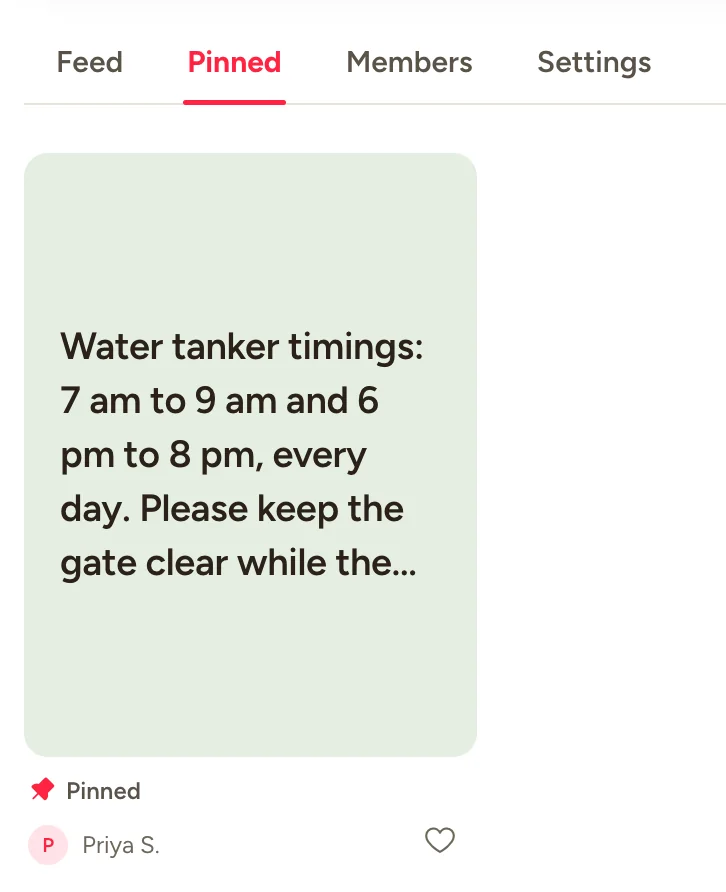
Pin what members keep asking about, such as the water-tanker schedule.
Posting, the chat and the daily update
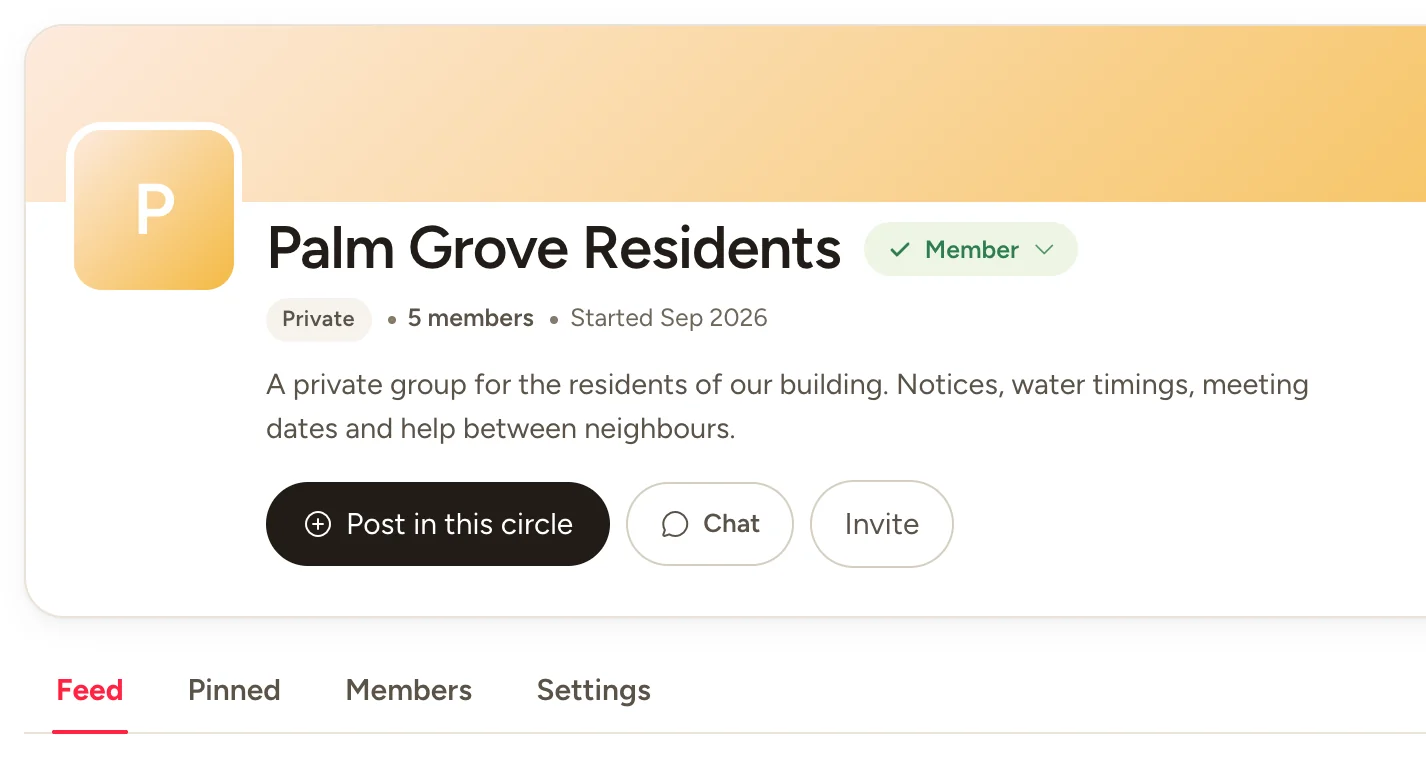
Only members can post in a circle. They get a Post in this circle button under its description, which opens the composer with the circle chosen. Beside it, Chat opens the circle's group chat.
A poll settles a decision, such as the date of the next meeting: tap Poll in the composer, and your caption becomes the question.
If your members already chat on WhatsApp, you can keep that group for quick replies and use the circle for notices and anything people will need to find again. Our look at WhatsApp group alternatives for apartments and clubs compares the other options.
At 6 PM India time, Sagazo sends each member one notification if their circles had new posts from other people in the last 24 hours, such as "4 new posts in Palm Grove Residents". To stop it for one circle, a member taps the Member badge beside that circle's name and chooses Mute this circle. A member who does not want it at all can open Settings, tap Notifications and switch off Circle Activity, which stops it for all their circles.
The same menu has Leave circle. After a confirm, the member is out of the circle and its chat, and their posts stay. The creator cannot leave, so their menu has only Mute.
If a moderator takes the circle down
Our moderators take down circles that break Sagazo's rules, and the creator gets a notification with the rule and the reason. After that, the circle's page opens only for the people who run it, with a notice about the takedown. Nobody can find it in the Discover Circles list on the Circles page or in search, and its posts stop showing to anyone outside it. If you think it was a mistake, open the notification and tap Ask for a review. Every decision about you is also listed on your account status page.
Deleting a circle
In the Settings tab, under Danger zone, the creator taps Delete circle and then Really delete. The circle's page goes away for everyone, every member is removed, and the posts in it are hidden. There is no undo.
Starting a circle
Anyone with a Sagazo account can start a circle. Open the Circles page, tap Create Circle, and give it a name and a line about what it is for. A shop can run one for its customers as well. In My Shop, the Set up your shop checklist on the Overview page has a card called Start a circle for your customers, and its Start a circle button opens the same form with the shop's name filled in. Once that circle is live, the shop's page invites visitors to join it. A shop can have one such circle.