To change stock for several products at once, tick them on the Products page and press Out of stock or Back in stock. Every ticked product changes in one go. Use it to take a batch off sale while it is sold out, or to put it back on sale when a delivery arrives.
The steps
- Open Products.
- Tick the box at the left of each product you want to change. To take every product on the page, press Select all before you tick any; the button shows how many products are on the page.
- A bar appears showing how many are selected. Press Out of stock to switch them all off, or Back in stock to switch them all on.
- Press Clear when you are done, or move on.
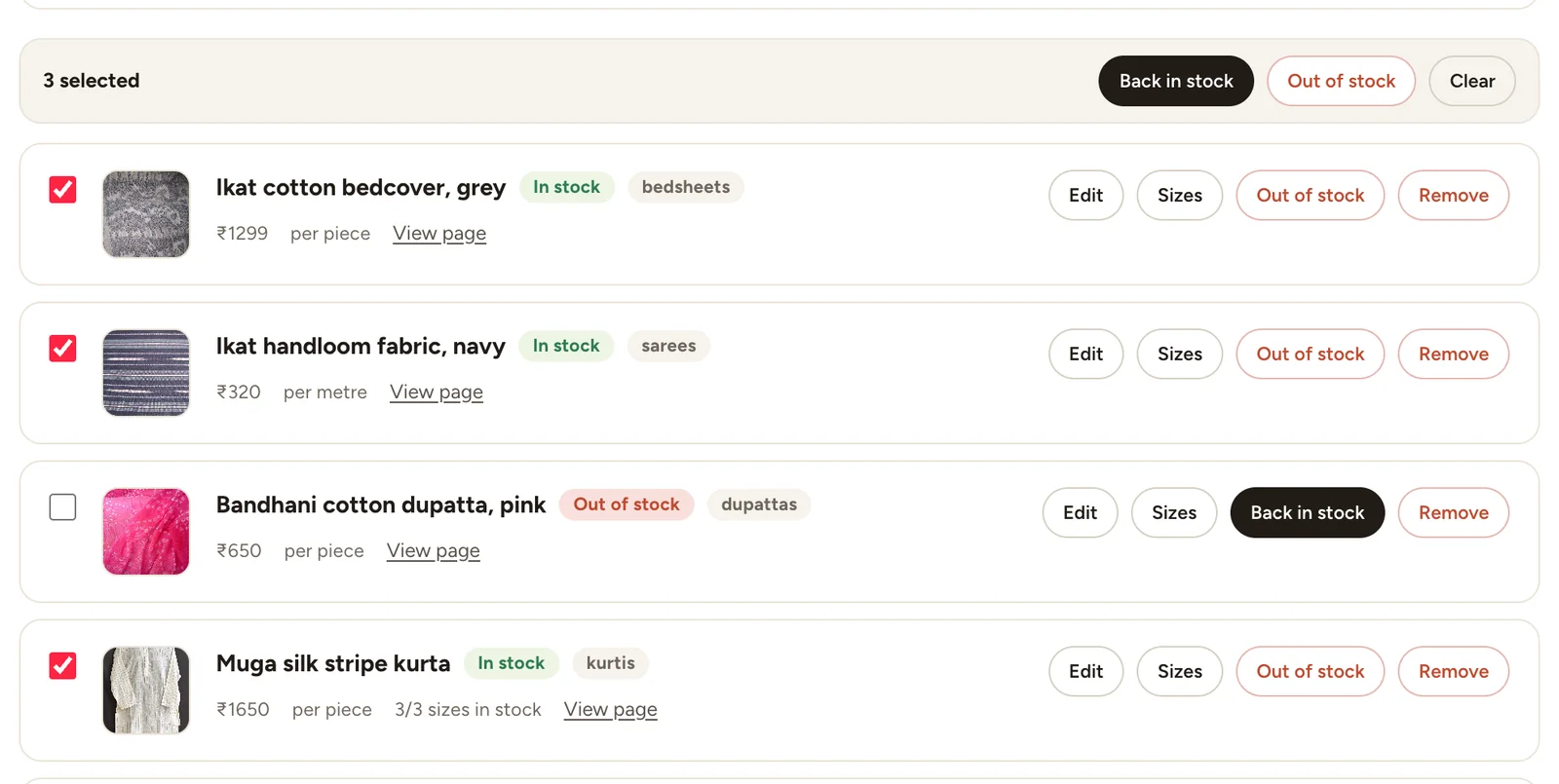
The change applies to the products you can see and ticked, nothing else. If you have more than a page of products, do it page by page.
What it changes
This sets the whole product in or out of stock. It does not touch the stock counts of individual sizes, so a kurti with 3 in M and 0 in L keeps those numbers and becomes orderable or not. To change a size's count, press Sizes next to that product, or use the Inventory page.