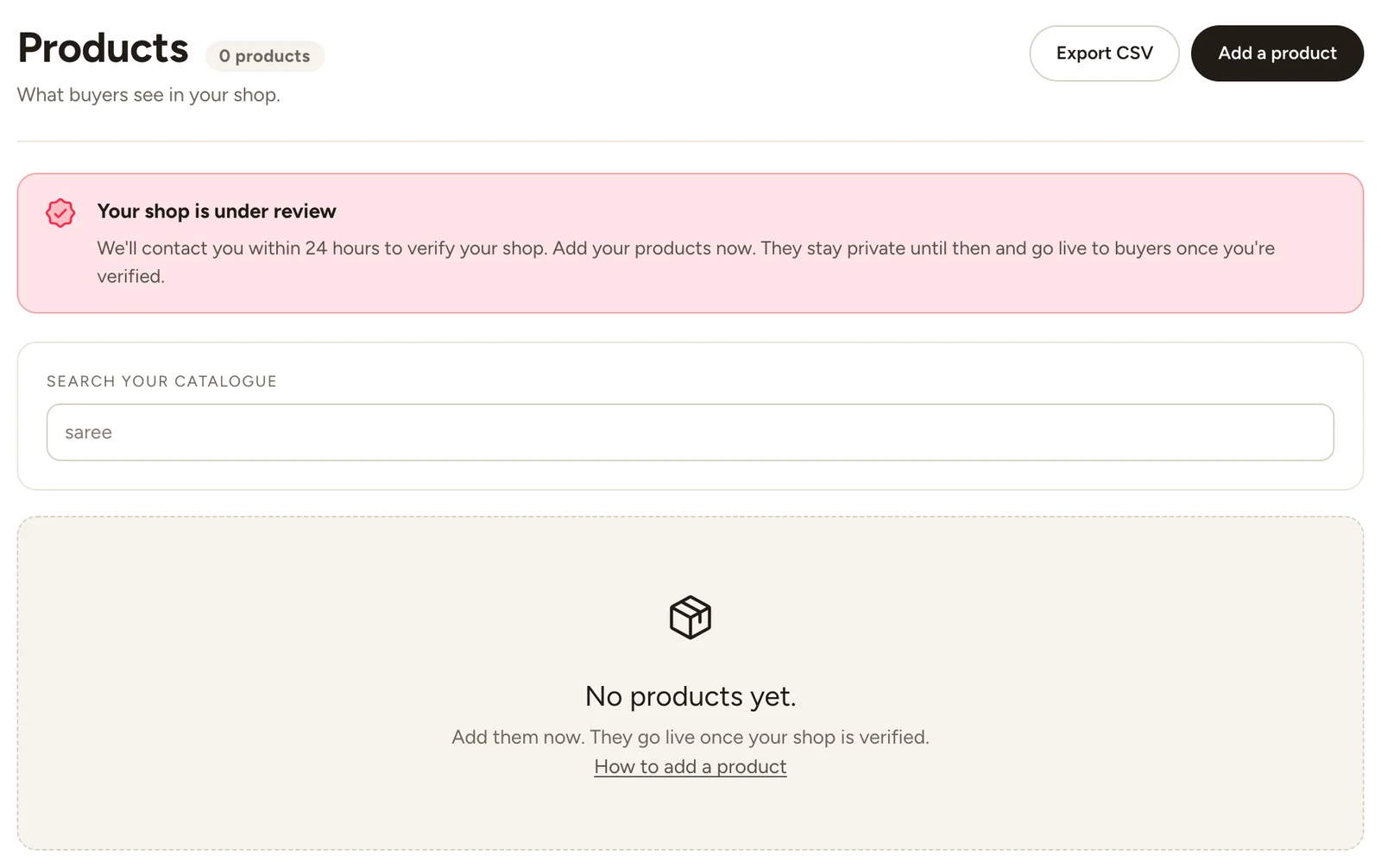
To add a product, open Products in your shop console and press Add a product. A form opens at the top of the page. A name, a category, a price and a photo are enough for a product to go on sale. Everything else on the form is there to help it sell and to get it delivered.
The form, top to bottom
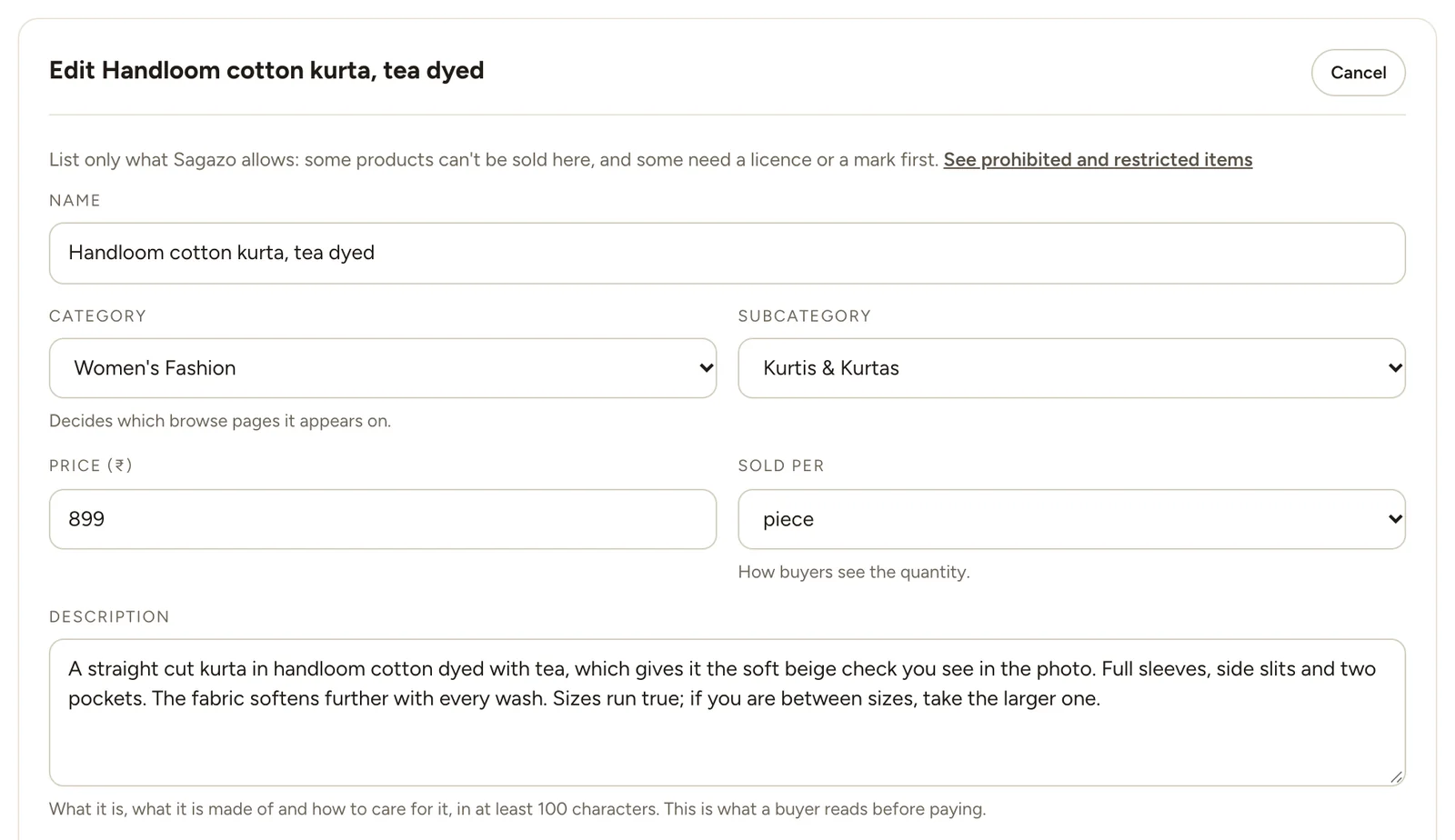
- Name. What you would call it to a customer, for example Kanchipuram silk saree.
- Category and Subcategory. Choose the main category, then the more exact one under it. Both are needed, and they decide which browse pages the product appears on. See choosing a category.
- Price, in rupees. What the buyer pays for one unit, before delivery.
- Sold per. The unit buyers see next to the price: piece, kg, gram, litre, ml, pack, dozen, set or metre.
- Description. What it is, what it is made of and how to care for it, in at least 100 characters. See writing a product description.
- Photos, or Photos and videos when videos can be added. Up to 5 in all, and the first one is the cover. See product photos.
- Sizes. Leave this alone unless the product comes in sizes. See sizes and stock.
- Manufacturer or packer, the product details table, and the shipping block (weight, HSN code and box size). Each has its own page in this section.
Press Add product. The photos upload at that point, so keep the page open until it says the product was saved.
What happens to it
If your shop is verified, the product is on your shop page straight away, and on its category pages and in the feed within a moment. If your shop is still under review, only you can see it until we verify the shop, and then it goes live on its own. See why your products are hidden until your shop is verified.
Every product gets its own web address, made from its name. See how your product's web address is chosen.
Editing later
On the Products page, press Edit next to a product. The same form opens with everything filled in except the sizes, and the button at the bottom reads Save changes. Photos you remove there are deleted from our storage as well, not just hidden. To change sizes, press Sizes next to the product.