A product is either in stock or out of stock, or it comes in sizes, and then each size has its own stock count. Which one you use depends on the product. A jar of pickle has no sizes. A kurti has S, M, L and XL, and you may have three of one and none of another.
A product without sizes
Every product has an In stock or Out of stock state, shown on the Products page next to its name. Press Out of stock when you run out and Back in stock when you have more. A product marked out of stock stays on your shop page so buyers can see it, but the Add to cart button is off.
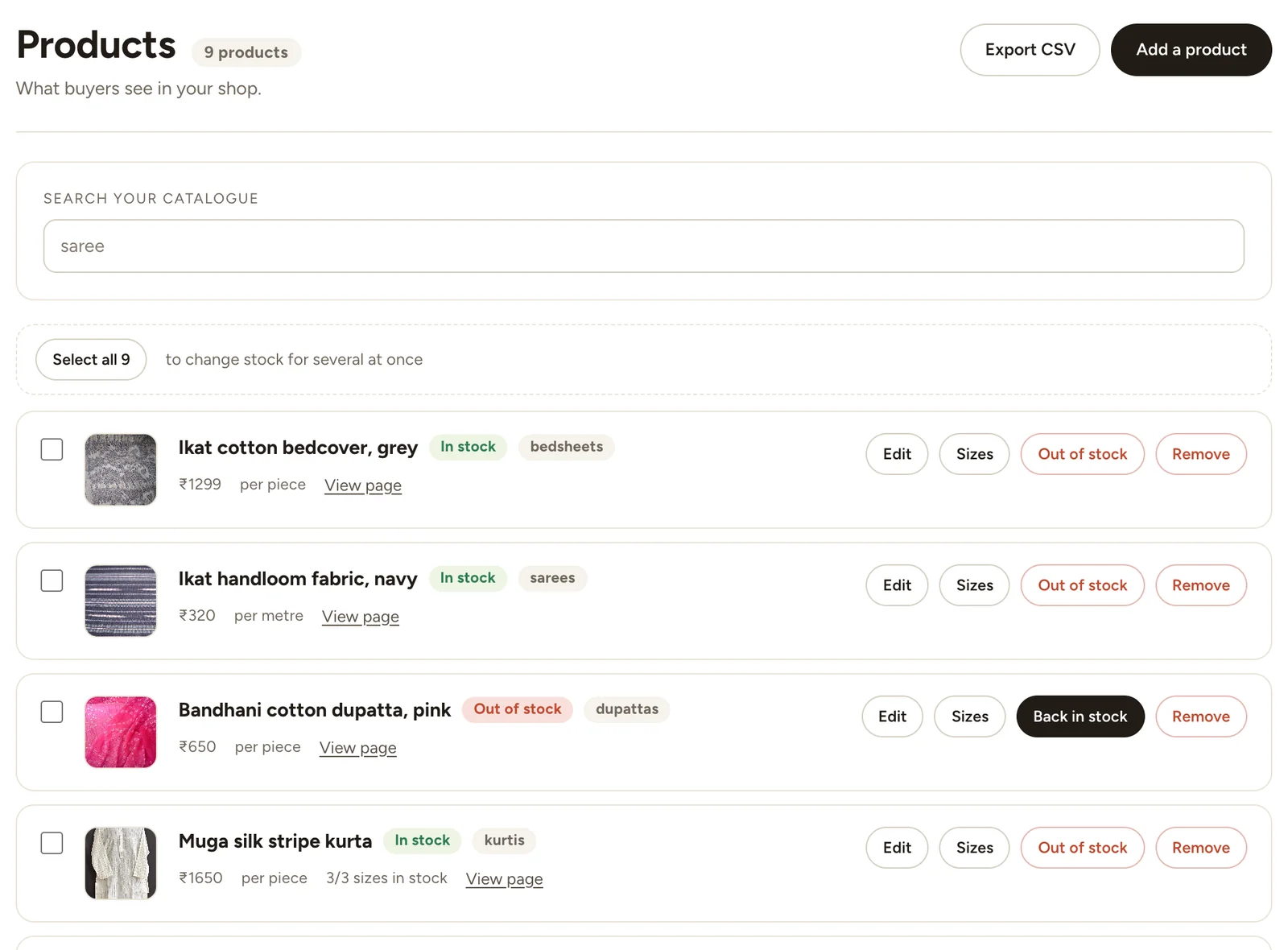
A product with sizes
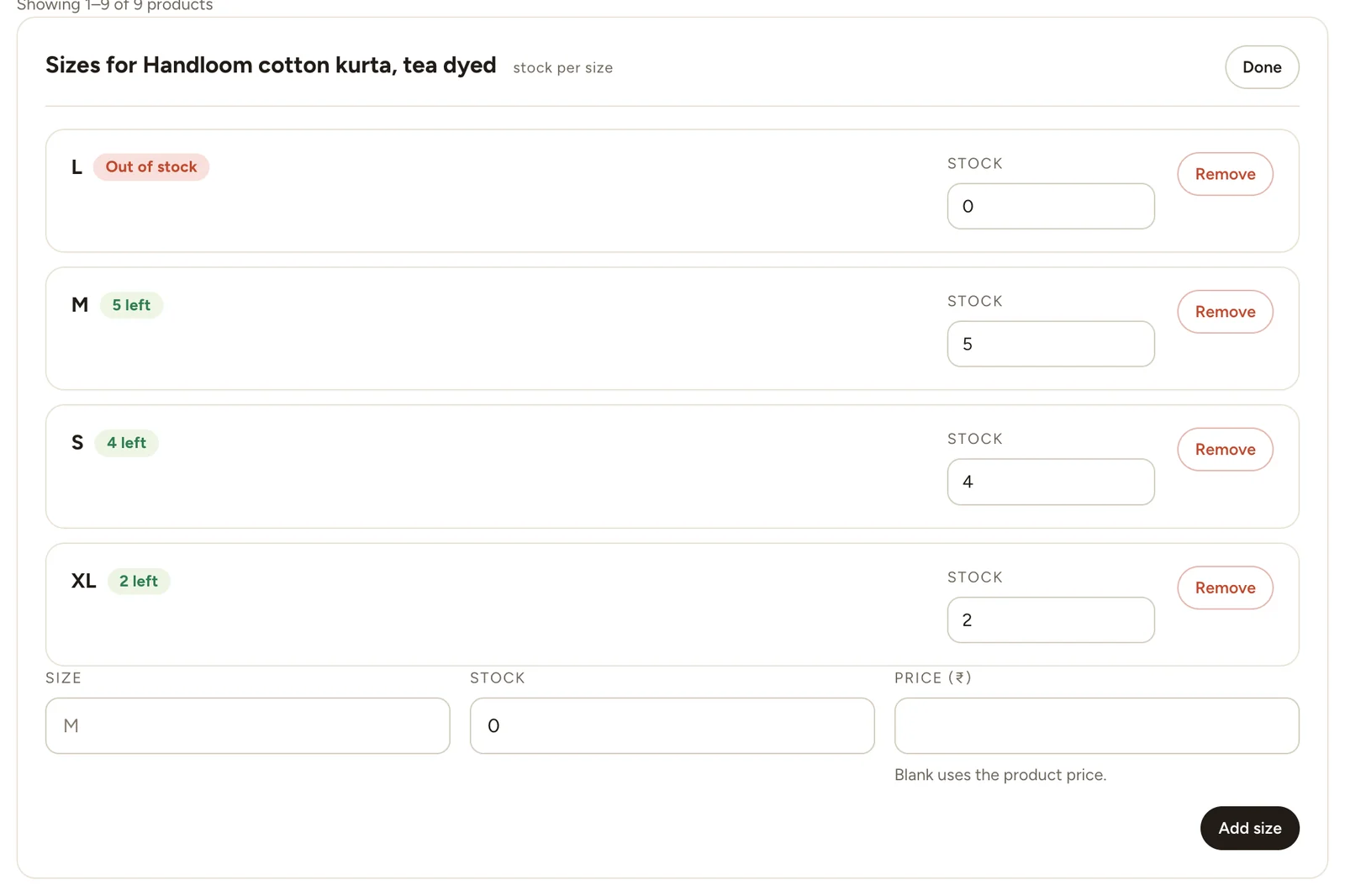
When you create the product, the Sizes block lets you add rows: a size, such as S, M or 38, and how many you have of it. Leave the block empty for a product without sizes.
Once the product exists, press Sizes next to it on the Products page. A panel opens with every size and its stock. There you can add a size, with its own price if it differs (blank uses the product price), change the stock of a size, or remove a size.
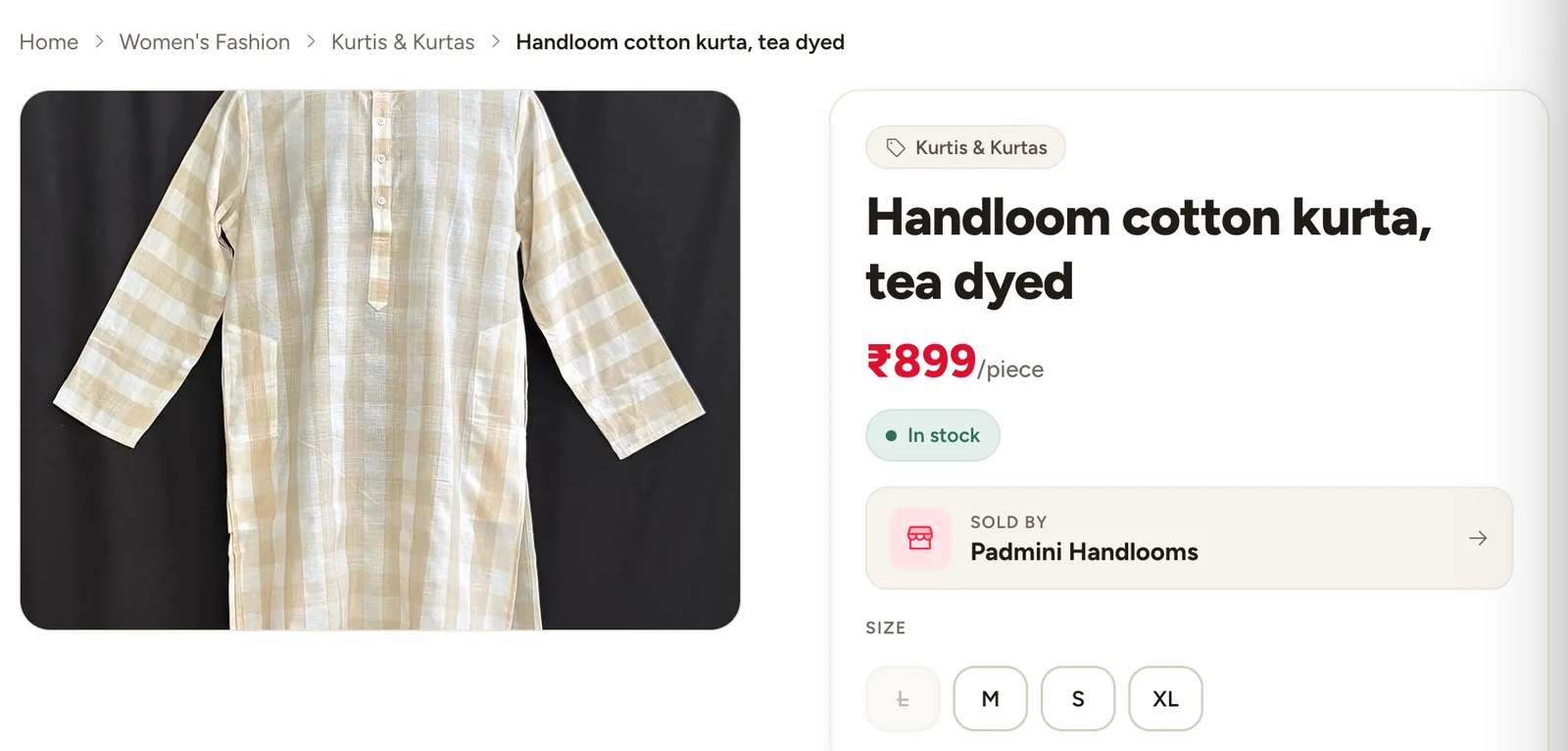
A buyer picks a size before adding the product to the cart. A size with no stock is shown but cannot be chosen. When every size is at zero, the product page reads Out of stock and no size can be picked.
What happens when someone orders
When a buyer places an order, the stock of the size they chose goes down by the quantity they bought. This happens at the moment of ordering, so two buyers cannot both buy the last piece. If the buyer cancels the order before you send it, the stock comes back on its own.
For a product without sizes, nothing is counted. In stock means a buyer can order it, and it is up to you to mark it out of stock when it runs out.
Where to see what has run out
The Inventory page lists only the products a buyer cannot order right now, with a box to restock a size in one step. To switch many products at once, see changing stock for several products at once.
Removing a product
Press Remove next to the product on the Products page and confirm. It is gone from your shop page and from search straight away. This only works for a product nobody has ordered yet: once a product has been in an order, it stays, because the order's record points at it, and the page tells you it could not be removed. Mark it out of stock instead. That also suits a product you might sell again, because it keeps its web address and its photos.