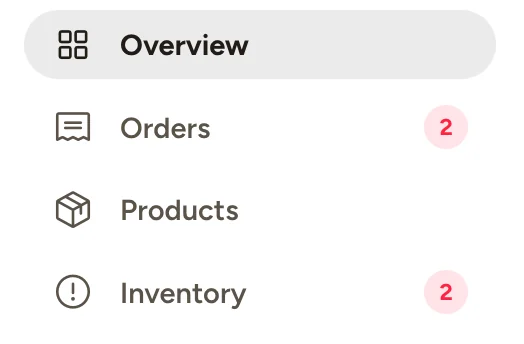
Your shop console lives at sagazo.com/my-shop. Its pages run down the rail on the left, in the order of a seller's day: what needs sending first, then the catalogue, then the people and the money, then how the shop looks. On a phone the same pages sit in a strip across the top.
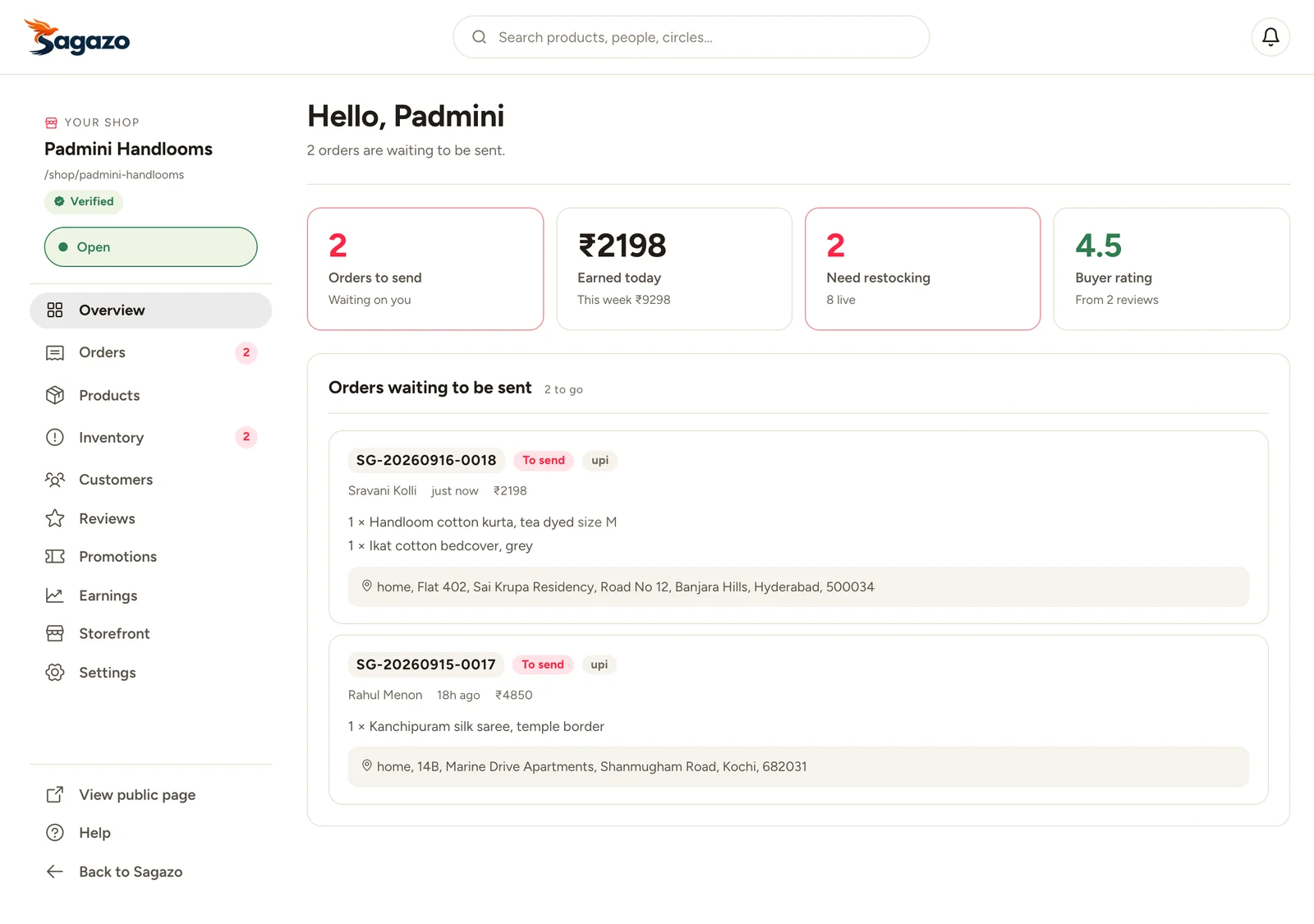
Here is what each page is for.
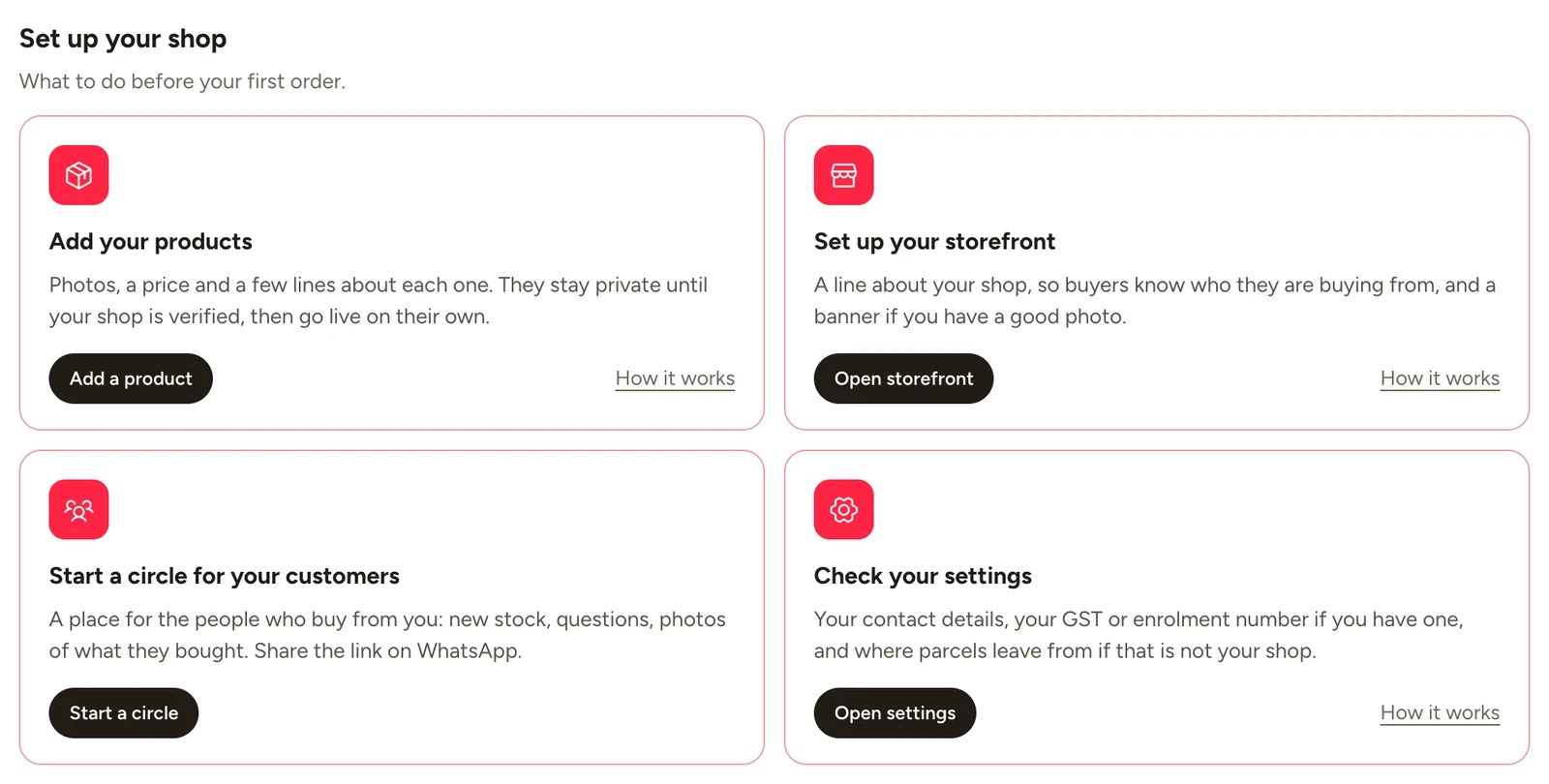
- Overview. The day at a glance: orders waiting to be sent, what you earned today, what needs restocking, and your buyer rating. The orders waiting to be sent are listed right there; press an order's number to open it and mark it dispatched. A new shop sees a setup list here first, until it has products, an About line and a circle for its customers.
- Orders. Every order, in tabs: To send, Sent, Delivered, Cancelled and All. To send is the one with work in it. See what each order status means.
- Products. Your catalogue. Add a product, edit one, mark it in or out of stock, and download the whole list as a spreadsheet. See how to add a product.
- Inventory. Only the products a buyer cannot order right now, with a quick way to put them back. See the Inventory page.
- Customers. Your 200 most recent customers, how often each ordered, and what they spent.
- Reviews. What buyers said after their order arrived. Only you and Sagazo see these.
- Promotions. Discount codes for your own products. See creating a discount code.
- Earnings. Your sales today and over the last 7 or 30 days, with charts and your best sellers.
- Storefront. Your banner, the About line buyers read in the About this shop box, and your opening hours, with a preview of how the page looks to a buyer.
- Settings. Your shop name and category, contact details, tax numbers, and the pickup address.
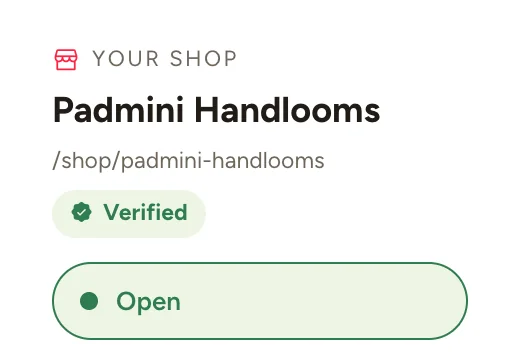
Above the pages, the rail shows your shop name, your shop link, whether the shop is verified, and the open and closed switch. Below them, View public page opens your storefront as a buyer sees it, and Help brings you here. On a phone the rail is hidden, so the strip at the top has only the pages, Help and Free tools. The switch needs a computer or other wide screen, and the Storefront page has its own View public page button.
A number next to Orders is how many orders are waiting to be sent. A number next to Inventory is how many products need restocking.